AI Character Swap in Video: We Tested 5 Models — Here's What Actually Works
We tested Seedance 2.5, Kling 4.0 and Wan 3.0 on 46 real character swaps, cats included. Which model to use, and the first-frame trick that finally handled two characters.
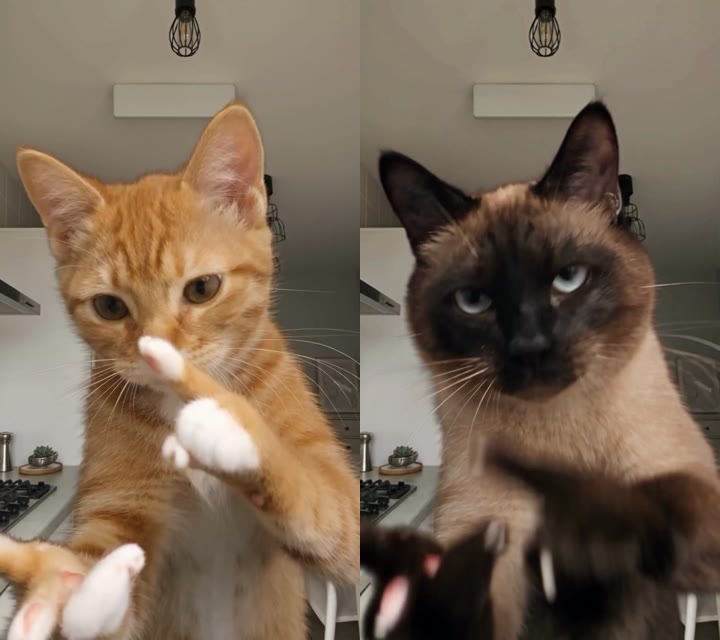
The idea is simple: take a video, keep every movement, every camera move and every frame of timing, and put your character in it. Your face. Your dog. Your cat.
We wanted this for our AI Motion Transfer tool, so we spent three days testing it properly: 46 runs, 5 models, one cat owner with a lot of opinions. Here is everything we learned — including the runs that went badly wrong, and the trick that fixed the hardest case on the last day.
The short answer
| One character | Two or more characters | |
|---|---|---|
| Seedance 2.5 | Best result. Keeps the clip's exact motion and length, up to 30s | Best looks once you swap the first frame first (Round 5). Without that, it loses a character in the background |
| Kling 4.0 | Good | Most reliable: every character gets replaced, but they look less like the references |
| Wan 3.0 / Wan 3.0 Prime | Works, but drifts | Unreliable; reference clips capped at 15s |
| Seedance 2.0 | Can't edit an existing clip, only use it as inspiration | — |
If you only read one line: Seedance 2.5 for one character; for two or more, swap the characters into the clip's first frame with an image model, then hand that frame to Seedance 2.5 — with Kling 4.0 as the safe fallback. Now the long version.
Round 1: a quick sanity check
Our first run used two photos of a woman and a short clip of an orange cat dancing in a kitchen, on Wan 3.0. The cat became the woman — same kitchen, same moves.
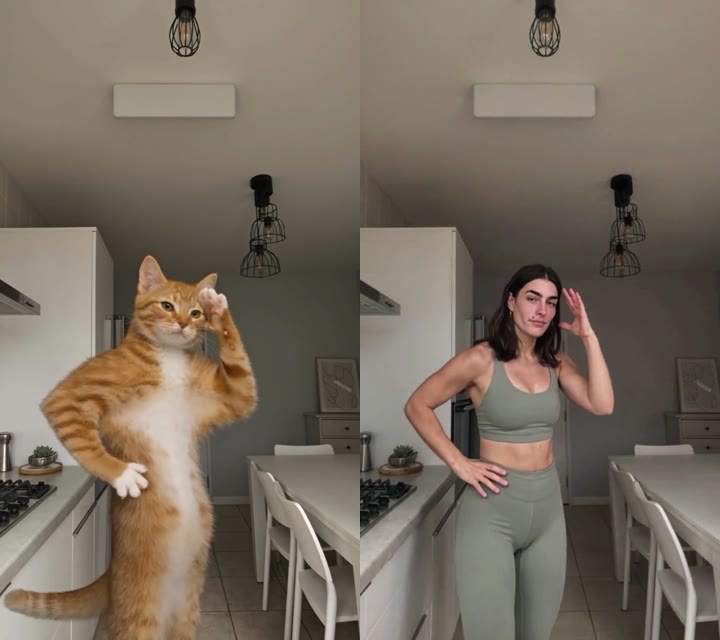
So the basic idea works. The real test was the reverse: put a specific cat into a video. Cats are hard. There is no face-swap model for fur, and every Siamese looks like every other Siamese to a model that doesn't pay attention.
Round 2: one cat, Seedance 2.5
We uploaded 8 photos of our cat — face, side, top, torso — and a note: "be careful about the patterns on his neck."

The actual 8 photos we used. Nothing staged: phone shots, bad lighting, a human in half of them.
Three lessons came out of this round.
1. "Edit this video" and "make a video like this one" are different jobs. Most video models treat a reference clip as inspiration: they generate a new video that roughly follows it. That's fine for a vibe, but for a swap you want the original clip edited, frame for frame. Seedance 2.5 can do the second — and it actually insisted on it. When we asked for a fixed 11-second output, it refused: it had recognised the job as an edit, and in an edit the output length follows the input video. Once we let the clip decide the length, the poses matched exactly.
2. Photos from several angles matter. The front-facing photo gives the face; the side and top shots are what keep the body and markings right when the cat turns around.
3. Generated audio can get blocked. One run failed because the model's own soundtrack was flagged as possibly copyrighted. The fix: generate the video silent, then put the clip's original audio back. That's what the tool does now.
The result, on a 29-second clip:
Same kitchen, same timing, same paw waves — our cat, blue eyes and dark points included.
Round 3: two cats, three models
Next: a clip with two cats, replaced by our two cats (5–8 photos each). Seedance 2.5 handled it well — both cats swapped, the scene untouched.
Then we tried the same inputs on Wan:
- Wan 3.0 Prime left the black cat in the back untouched for the first seconds — and then invented a new wide shot that isn't in the original clip at all.
- Wan 3.0 followed the clip better, but the faces drifted away from our cats.
Left to right: Seedance 2.5, Wan 3.0 Prime, Wan 3.0.
Wan also caps reference clips at 15 seconds combined. Seedance 2.5 takes 30.
Seedance 2.0 never got a fair shot: it only accepts a reference video as inspiration, so it can't edit a clip at all.
Round 4: two people → two cats (the hard one)
Then we got ambitious: a 21-second clip of two people dancing, the camera cutting between close-ups and wide shots, people moving in front of each other. Replace both with our cats, 5 photos each.

Character 1 (left five) and Character 2 (right five), exactly as uploaded.
This is where it got humbling.
What went wrong
- The background problem. Seedance 2.5 reliably replaced whoever was in the close-up. But when the woman stepped into the background, she often came back as herself. Over about ten runs, this was the failure that wouldn't go away.
- Describing clothes backfired. One prompt read "Replace the man wearing shorts and a black t-shirt with the character shown in…" That run replaced nothing. Our guess: the model read it as a description of clothing, not a swap. Rewording it as "The man in shorts: replace this subject with…" fixed that part.
- More prompt engineering didn't fix tracking. Numbered lists, "replace exactly 2 subjects, none of the originals may remain", a strict "change only these, keep everything else" template, a replacement map at the end. All of them helped a little. None of them solved the background problem.
- Clever tricks didn't help either. We tried feeding the model a depth map of the video instead of the original clip (the woman stayed untouched for the first seconds). We tried swapping one character per pass (the second pass came back almost identical to the first).
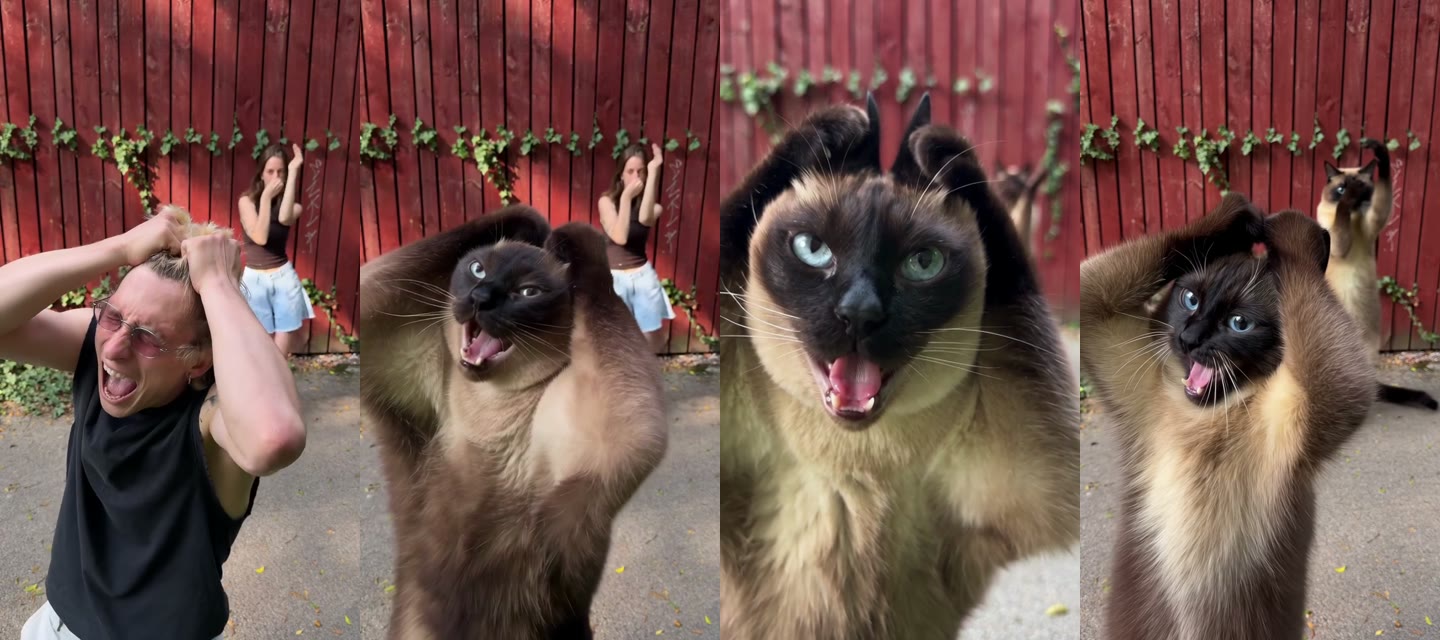
Same moment, four versions. Left to right: the original; Seedance 2.5 with the strict prompt (the woman in the background is still there); Seedance 2.5 when we described where each person stands (both replaced, but the framing drifted); Kling 4.0 (both replaced).
One thing did help Seedance: saying where each person is, not what they wear — "starts on the left, behind, but comes to the front in some shots." That run got both cats in almost every frame. It wasn't consistent run to run, though.
Kling 4.0: reliable, with a catch
Kling 4.0 replaced both people on the first try. Two catches:
- With plain photo lists, both cats came out looking the same. Kling lets you group photos into named characters ("elements"). Once each cat was its own element, it kept them apart.
- "Auto" aspect ratio turned our vertical clip into a horizontal video. Setting the ratio explicitly (9:16) fixed it. The tool now matches your clip's ratio automatically.
Left to right: the original clip, Seedance 2.5 (best run), Kling 4.0 with one element per cat.
Kling's cats are consistently there. Seedance's cats look more like our cats. That's the trade-off.
And then there's Wan 3.0 Prime
We gave Wan 3.0 Prime the same job. It decided the most faithful way to keep the dancer was to give him a cat mask — and left the woman behind him exactly as she was.
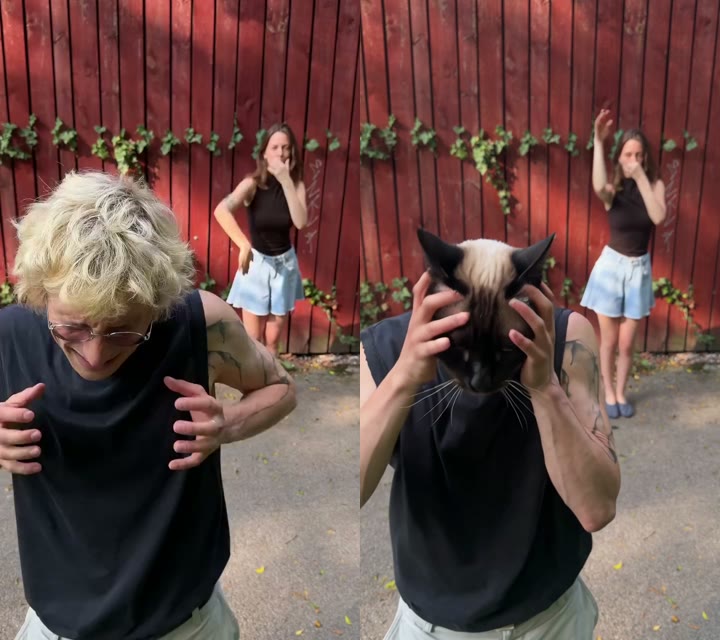
We are keeping this one for the office wall.
Round 5: swap the first frame first
We had one idea left, borrowed from how people chain these models by hand: don't ask the video model to find the characters. Show it.
- Take the clip's first frame.
- Swap the characters into that still image with an image model — a much easier job, and one you can check with your own eyes before spending on video.
- Give the video model the clip, the photos and the swapped frame: "this is the opening shot with every replacement already applied, start from here."
Kling's own guide documents the second half of this ("@Image1 is the first frame, @Video1 is the reference for camera and motion"), so we built it into the tool as two new options, "First frame" for Seedance 2.5 and for Kling 4.0, and ran the two-dancer clip again.
Step one: the image model matters
The first attempt stumbled before any video was made. Nano Banana Pro replaced the dancer in the back with a cat, kept the woman in front exactly as she was, and put a cat next to her. GPT Image 2.5, same photos, same prompt, replaced both — and gave the front cat her hand-on-hip pose.
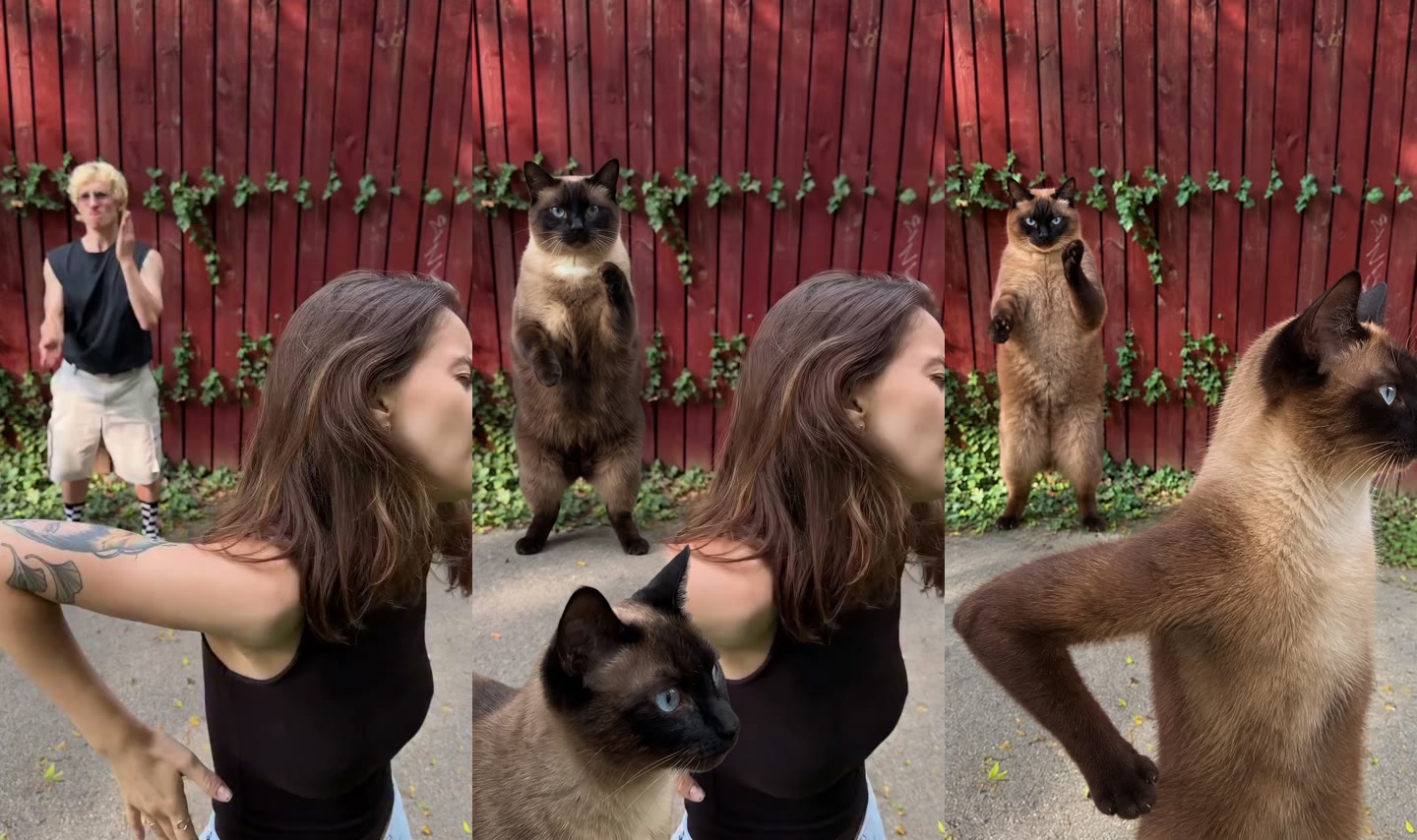
Left to right: the clip's first frame; Nano Banana Pro (woman kept, cat added); GPT Image 2.5 (both replaced). The image step costs about a tenth of the video step, so it's cheap to check and retry.
Step two: the video
Three runs on the same inputs, same swapped frame where one was used:
- Kling 4.0, edit-mode prompt. No frame — just the prompt rewritten the way Kling's guide says ("Edit @Video1. Replace exactly 2 subjects… keep everything else unchanged"). Both cats, every shot.
- Kling 4.0 with the swapped first frame. Both cats, every shot, slightly closer to our cats than the prompt-only run. Honest verdict: the difference between the two Kling runs is small. Both are better than every Kling run before them.
- Seedance 2.5 with the swapped first frame. The best run of the whole test. Both cats in every shot, the dark cat and the pale cat kept apart, faces and markings closest to the photos by a clear margin.
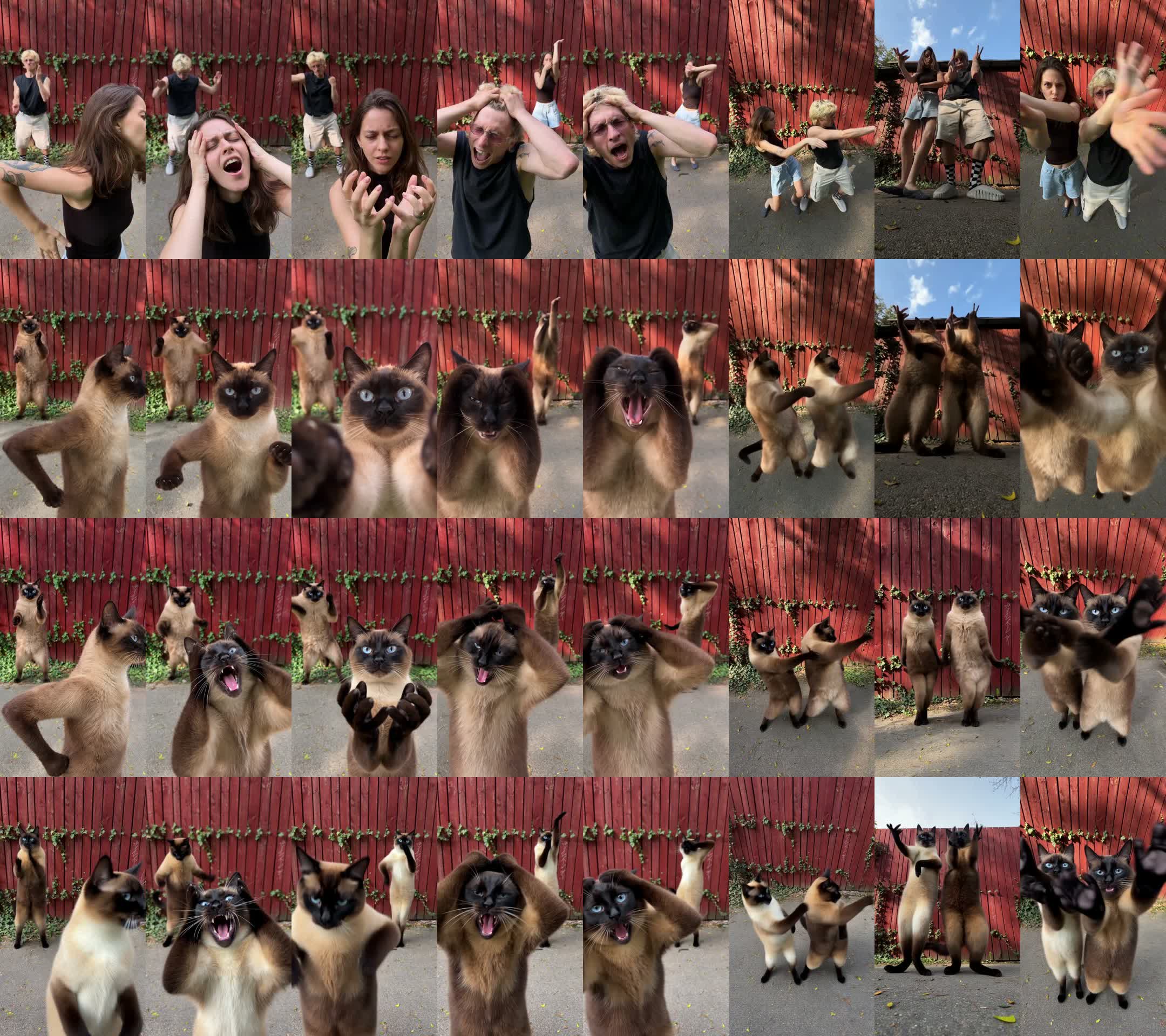
The same eight moments from each run. Top to bottom: original; Seedance 2.5 + first frame; Kling 4.0 + first frame; Kling 4.0, edit-mode prompt only.
Left to right: Seedance 2.5 + first frame, Kling 4.0 + first frame, Kling 4.0 edit-mode prompt. The original clip is in Round 4.
Two things to know before you copy this:
- Seedance needs to generate, not edit, for this to work. Our first Seedance run with the frame used edit mode (the mode that gave us the perfect one-cat results in Round 2) and came back as the original clip, untouched — not one pixel changed. Switching to "generate a video that follows the clip, starting from this frame" is what produced the run above. The cost: the moves are followed closely but not frame-for-frame. The woman's opening dance move is the one place it visibly drifts; everything after that lands.
- Kling's cats have hands. Kling keeps every beat of the choreography, including the hand-clap at the start — so its cats clap. With paws. It's the funnier video; it's also the less cat-like one.
The exact prompts
These are the prompts the tool built and sent for the three runs above, word for word (only our typos in the closing "important instructions" line are fixed). The character descriptions and the "who to replace" lines are what we typed into the form; everything else is the template.
Three things these prompts do that a one-liner doesn't: each character gets its own numbered line with its own references (@Character1, "images 2-6"), the target is named by position and looks before the word "replace", and the prompt ends with an explicit list of what must not change. The video prompts also name the frame outright: "@Frame is the first frame".
What we'd tell you before you try it
- One character: Seedance 2.5, edit mode. It keeps the clip frame for frame.
- Two or more: swap the first frame first, then Seedance 2.5. Check the swapped frame before you run the video; if the image model kept someone, try another image model (GPT Image 2.5 did better than Nano Banana Pro for us). Kling 4.0 is the fallback when you need the motion kept exactly and can live with less faithful faces.
- Upload 5–8 photos per character from different angles. Front-facing first, then side, back, full body. One selfie is not enough, especially for animals.
- Describe who to replace by position and looks, not clothing. "The woman in the foreground with long brown hair and a tattooed arm; she starts close to the camera and is sometimes behind the man" beats "the woman in the black top".
- Describe the character, not the photos. "Dark brown seal-point Siamese, mocha body, pale tan chest, blue eyes, stocky build" worked; "8 photos of my cat, be careful about the patterns" didn't tell the model anything. When two characters look alike, lead with what tells them apart.
- Keep the clip short and simple when you can. Fewer cuts and fewer people crossing each other mean fewer chances to lose someone.
- Expect to run it twice. Even the best setup wasn't 100% consistent on the hard clip. Same inputs, different seeds, noticeably different results.
Try it
Everything above is built into AI Motion Transfer: upload a clip, add photos of up to three characters, say who to replace, and pick a model — Seedance 2.5, Kling 4.0, or either one with the "First frame" step, where you also choose the image model that does the swap. Extracting the frame, matching the aspect ratio, muting the generated audio and restoring the original soundtrack all happen for you, and the swapped frame shows up on the run's board so you can judge it before the video finishes.
Want to go further? Seedance 2.5's reference-to-video mode is also available directly on the Scenetra board, where you can chain it with any other model.
Questions people ask
Which AI tool is the best for character swaps in video? For one character, Seedance 2.5 in edit mode: it keeps the original clip frame for frame and swapped our cat in with the right face and markings on a 29-second clip. For two or more characters, Seedance 2.5 again, but only after an image model has swapped the characters into the clip's first frame; Kling 4.0 is the reliable fallback when every character must be replaced and the motion must be kept exactly.
Can AI replace a character in an existing video, or does it just generate a lookalike? Both exist, and the difference matters. Seedance 2.5 and Kling 4.0 can edit the clip you give them; Seedance 2.0 and Wan 3.0 treat it as inspiration and generate a new video that roughly follows it. For a swap you want the edit.
How many reference photos do you need? Five to eight per character, from different angles: a front-facing one first, then side, back and full body. One photo gives you a face; the other angles are what keep the body and markings right when the character turns. For animals this is not optional.
Why does the second character keep coming back as the original? Because video models track the subject in the foreground and lose the one behind it. Describing where each person stands helps a little; swapping both into the first frame with an image model, then giving that frame to the video model, is what fixed it for us.
Does it work with pets? Yes — every example in this post is a cat. Describe the animal in words as well as photos (coat, markings, eye colour, build), and when two animals look alike, lead with what tells them apart.
Try a ready-made AI workflow
One-click tools built on Scenetra — fill in a form, no node editor needed. See all tools
AI Motion Transfer
Copy the motion from any video onto up to four AI characters — each performs the exact same dance, gestures, or delivery, in sync.
AI Product Photography
Upload one product photo and get four professional lifestyle scenes — kitchen, garden, studio, and living room — background-removed, restaged, and upscaled to crisp detail.
AI Fashion Photoshoot Generator
Upload your clothing photos and get a full AI fashion photoshoot — a generated model wears your garments across styled, cinematic shots.
AI Product Animator
Animate a product photo into a short, ultra-realistic promo clip — background removed, product restaged, then brought to life with camera motion.