How to Chain AI Models: Image Generation → Video in One Workflow
Learn how to chain AI image and video models together. Generate an image with one model, then animate it to video with another — all in a connected visual workflow.
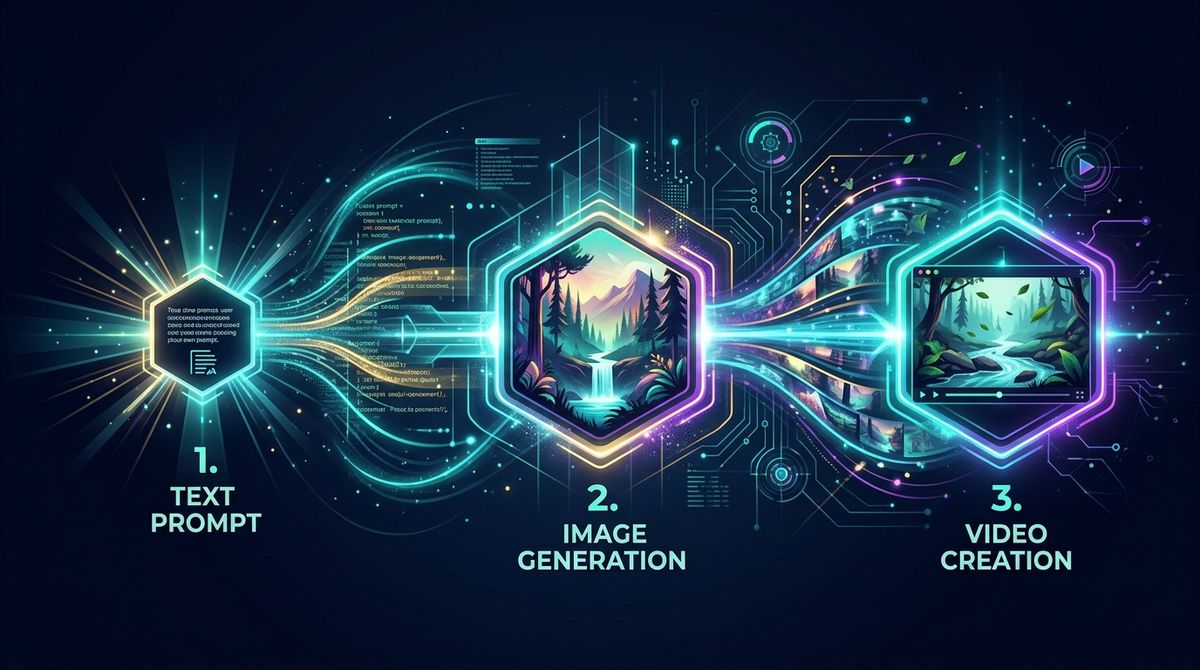
Here's a workflow that keeps showing up on Reddit and YouTube: generate an AI image, then turn it into a video. The concept is simple. The execution — using separate tools — is painful.
You generate an image in one tool, download it, upload it to a video generator, adjust settings, wait, download again. If the video doesn't look right, you go back to the image, regenerate, re-upload.
What if the image and video models were connected in one pipeline?
The Chain: Text → Image → Video
The basic chain looks like this:
Text Prompt → Image Model → Video Model → Output
But the real power comes from adding steps:
Text Prompt → Prompt Enhance → Image Model → Upscale → Video Model → Output
Or branching:
Text Prompt → Image Model → Video Model A (Kling)
                          → Video Model B (Veo)
                          → Video Model C (Sora)
Compare three video outputs from the same source image. Pick the best. All in one workflow.
Best Model Chains in 2026
High Quality: Flux 2 Pro → Veo 3.1
- Image: Flux 2 Pro generates a sharp, detailed image
- Video: Veo 3.1 animates it with up to 4K resolution and native audio
Best for: Professional content, brand videos, high-fidelity output.
Cost: ~$0.03 (image) + ~$1.60 (8s video at 720p) = $1.63 total
Fast & Cheap: Nano Banana 2 → Seedance 1.5 Pro
- Image: Nano Banana 2 generates fast at $0.067
- Video: Seedance 1.5 Pro animates at $0.05/second
Best for: Social media content, quick iterations, testing ideas.
Cost: ~$0.07 (image) + ~$0.25 (5s video) = $0.32 total
Cinema Quality: GPT Image 1.5 → Kling 3.0 Pro
- Image: GPT Image 1.5 for precise prompt following
- Video: Kling 3.0 Pro for stunning visual fidelity
Best for: Hero content, ads, portfolio work.
Cost: ~$0.02 (image) + ~$0.42 (5s video) = $0.44 total
Budget: Nano Banana 2 → Hailuo 2.3
- Image: Nano Banana 2 at $0.067
- Video: Hailuo 2.3 at $0.28 per 6s video
Best for: Volume content, testing, social media.
Cost: ~$0.07 + $0.28 = $0.35 total
Building the Chain in Scenetra
Step 1: Prompt
Drop a Prompt node. Type your scene description.
Tip: Use the Prompt Enhance node between your prompt and the image model. It adds visual detail that makes the image more "animatable."
Step 2: Image Generation
Connect to your chosen image model. The output is an image ID that can flow to any downstream node.
Step 3: Video Generation
Connect the image output to a video model's "First Frame" input. The video model uses your image as the starting frame and animates from there.
Step 4: (Optional) Upscale Between Steps
Insert a Topaz Upscale or SeedVR Upscale node between the image and video model. Higher-resolution source images = better video output.
Step 5: (Optional) Add Audio
Some video models include native audio generation:
- Veo 3.1 — native audio synthesis
- Kling 3.0 Pro — native audio + voice control
- Wan 2.6 — audio support
Or chain a Chatterbox TTS node for custom voiceover.
Advanced: First + Last Frame Control
Some video models accept both a starting and ending frame:
Prompt A → Image Model → Start Frame ─┐
                                       ├→ Video Model → Output
Prompt B → Image Model → End Frame ───┘
The video model generates motion that transitions from frame A to frame B. Available on:
This is incredibly powerful for controlled camera movements, transformations, or story sequences.
Why Chaining Beats Separate Tools
| Separate Tools | Chained Workflow | |
|---|---|---|
| Image → Video | Manual download + upload | Automatic connection |
| Iteration speed | Minutes per cycle | Seconds per cycle |
| Model comparison | One at a time | Side by side |
| Reproducibility | Manual notes | Saved workflow |
| First + last frame | Very tedious | One workflow |
Try It
- Open app.scenetra.com
- Drop a Prompt → Image Model → Video Model chain
- Connect the nodes
- Generate your first image-to-video pipeline
Scenetra is a visual AI workspace where you chain image, video, and audio models together. Build your first chain →
Try a ready-made AI workflow
One-click tools built on Scenetra — fill in a form, no node editor needed. See all tools
AI Product Photography
Upload one product photo and get four professional lifestyle scenes — kitchen, garden, studio, and living room — background-removed, restaged, and upscaled to crisp detail.
AI Fashion Photoshoot Generator
Upload your clothing photos and get a full AI fashion photoshoot — a generated model wears your garments across styled, cinematic shots.
AI Product Animator
Animate a product photo into a short, ultra-realistic promo clip — background removed, product restaged, then brought to life with camera motion.
AI Lookbook Generator
Turn product photos into a styled four-panel lookbook grid — one polished, magazine-ready layout from a single run.