Node-Based AI Image Generator: Build Visual Workflows Like ComfyUI — Online
Looking for a node-based AI image generator that works in your browser? Scenetra lets you build visual generation pipelines with 50+ models, no local GPU needed.
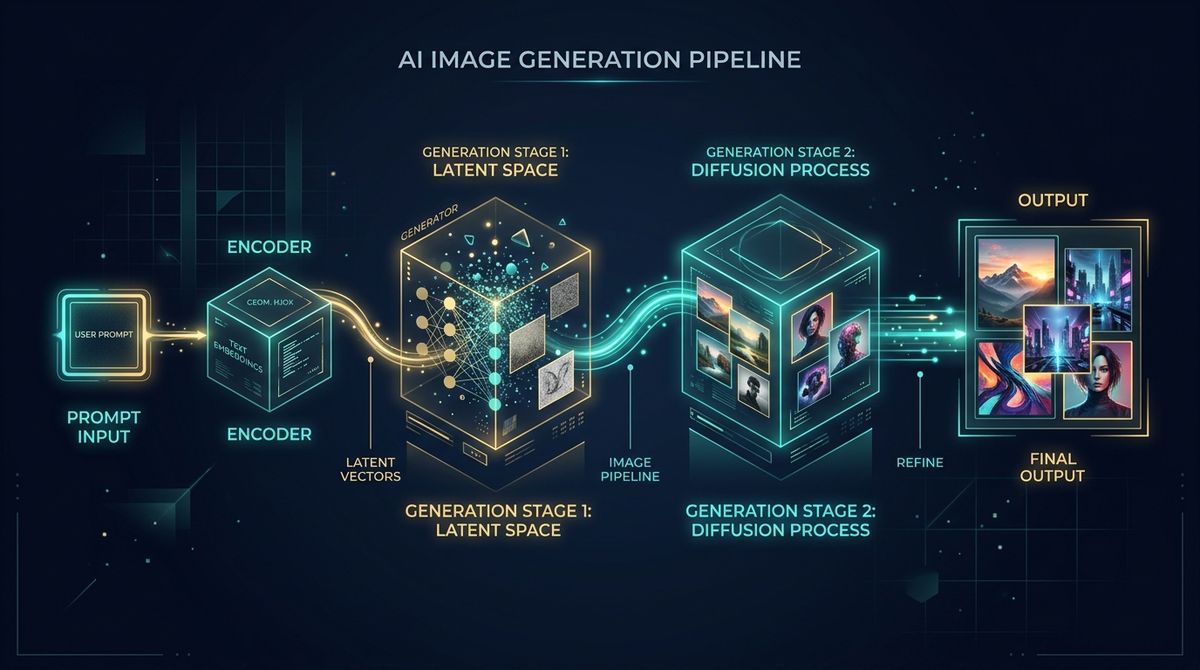
If you've used ComfyUI, you know the power of node-based image generation. Connect a text prompt to a model, route the output to an upscaler, branch into variations — all visually, all controllable.
The problem? Setting it up requires Python, a beefy GPU, and patience for dependency management.
What if you could get that same node-based workflow — but in your browser?
Why Nodes Beat Simple Prompt Boxes
Most AI image tools give you a text box and a "Generate" button. That works for quick one-offs. But the moment you need something more complex, you're stuck:
- Want to generate an image, then upscale it? Two separate tools.
- Want to try the same prompt across multiple models? Copy-paste and wait.
- Want to feed an image into a video generator? Export, upload, repeat.
Node-based workflows solve all of this. You build a pipeline once, and data flows through it automatically. Change the prompt, and everything downstream updates.
How Scenetra's Node Editor Works
Scenetra gives you an infinite canvas where you drag, drop, and connect nodes:
1. Input nodes — your starting points
- Text prompts (with enhancement tools)
- Uploaded images
- Audio files
2. Generation nodes — the AI models
- Nano Banana 2 for fast image generation
- Flux 2 Pro for professional quality
- GPT Image 1.5 for best instruction following
- Seedream 4.5 for text rendering
3. Editing nodes — transform and refine
- AI-powered image editing (Qwen, Seededit)
- Background removal (Bria, Recraft)
- Upscaling (Topaz, SeedVR)
4. Output nodes — preview, download, or feed forward
- Gallery view of all generated assets
- Direct download
- Connect to video generation nodes
The Key Difference from ComfyUI
ComfyUI runs Stable Diffusion locally. Scenetra connects to 50+ cloud models from multiple providers — Google, OpenAI, Black Forest Labs, ByteDance, and more. No model downloads, no VRAM limits, no checkpoint management.
You can literally use Kling 3.0 Pro for video and Nano Banana 2 for images in the same workflow. Try doing that in ComfyUI.
Real Workflow Examples
Prompt → Multi-Model Comparison
Connect one prompt node to three different image models. See results side-by-side instantly. Pick the best, delete the rest.
Image → Edit → Upscale → Video
- Generate an image with Flux 2 Pro
- Edit it with GPT Image 1.5
- Upscale to 4K with Topaz
- Animate to video with Veo 3.1
One workflow. Four steps. All connected.
Batch Prompt Variations
Feed one base prompt into Scenetra's batch variation node. It generates multiple prompt variations and runs them all through your chosen model automatically.
No GPU, No Setup, No Hassle
| ComfyUI | Scenetra | |
|---|---|---|
| Installation | Python + CUDA + Git | None |
| GPU needed | Yes (NVIDIA) | No |
| Models | Stable Diffusion | 50+ (Flux, Kling, Sora, etc.) |
| Video support | Limited | Native |
| Works on Mac | Partial | Yes |
| Works on Chromebook | No | Yes |
| Model updates | Manual | Automatic |
Try It
Go to app.scenetra.com, drop a prompt node and a model node on the canvas, connect them, and generate. That's it.
No Python. No drivers. No downloading 10GB model files.
Scenetra is a visual AI workspace with 50+ models for image, video, and audio generation. Start building workflows →
Try a ready-made AI workflow
One-click tools built on Scenetra — fill in a form, no node editor needed. See all tools
AI Product Photography
Upload one product photo and get four professional lifestyle scenes — kitchen, garden, studio, and living room — background-removed, restaged, and upscaled to crisp detail.
AI Fashion Photoshoot Generator
Upload your clothing photos and get a full AI fashion photoshoot — a generated model wears your garments across styled, cinematic shots.
AI Product Animator
Animate a product photo into a short, ultra-realistic promo clip — background removed, product restaged, then brought to life with camera motion.
AI Lookbook Generator
Turn product photos into a styled four-panel lookbook grid — one polished, magazine-ready layout from a single run.