AI Image Upscale + Animate to Video: The Complete Pipeline
Take any AI-generated image, upscale it to 4K, then animate it into a video — all in one connected workflow. Step-by-step guide with model recommendations and pricing.
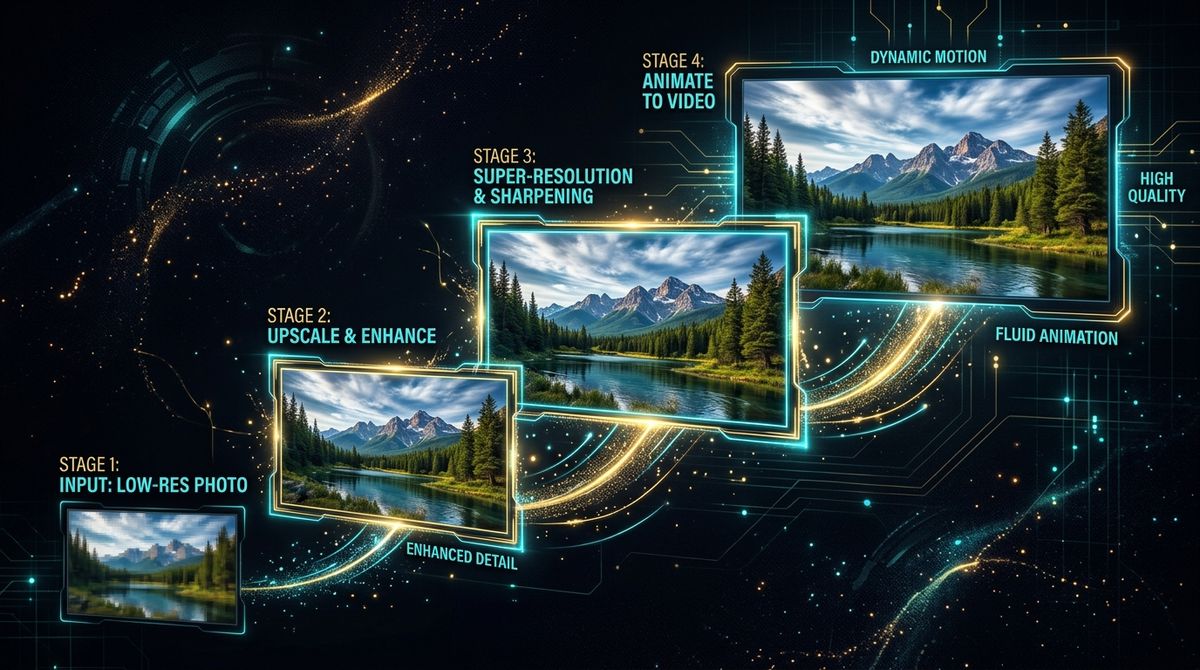
You generated an AI image. It looks great — but it's 1024×1024. You want to use it for a print campaign, or animate it into a video for social media.
Two problems:
- The resolution isn't high enough
- It's a still image, not a video
Here's the pipeline that solves both: Generate → Upscale → Animate.
The Three-Step Pipeline
AI Image → Upscale to 4K → Animate to Video
Each step uses a different AI model, each specialized for its job. In Scenetra, you connect them as nodes and the data flows automatically.
Step 1: Generate (or Upload) Your Image
Start with any image:
- Generate fresh with Nano Banana 2, Flux 2 Pro, or GPT Image 1.5
- Upload existing artwork, photos, or screenshots
If generating, pick your model based on need:
| Model | Best for | Base resolution |
|---|---|---|
| Nano Banana 2 | Speed, up to 4K native | 512px - 4K |
| Flux 2 Pro | Professional quality | ~1MP |
| GPT Image 1.5 | Prompt accuracy | 1024×1024 |
| Seedream 4.5 | Text in images | ~1MP |
Pro tip: Nano Banana 2 can generate natively at 4K, so you might skip the upscale step entirely if you use it.
Step 2: Upscale
AI upscalers don't just stretch pixels — they add real detail. A 1024×1024 image upscaled 4x becomes 4096×4096 with sharp details that weren't in the original.
Available Upscalers in Scenetra
Topaz Upscale Image
- Multiple enhancement models
- Face enhancement support
- Best for photos and realistic images
SeedVR Upscale Image
- Up to 10x upscaling
- ByteDance's AI upscaler
- Great for any image type
Recraft Upscale Crisp
- Produces sharp, crisp results
- Good for illustrations and graphics
Upscale Pricing
| Upscaler | Cost |
|---|---|
| Topaz | ~$0.04/image |
| SeedVR | ~$0.03/image |
| Recraft Crisp | ~$0.03/image |
Cheap. A few cents to go from 1K to 4K.
Step 3: Animate to Video
This is where magic happens. Feed your upscaled image into a video model's "First Frame" input, add a motion prompt, and get a video that starts from your exact image.
Best Video Models for Image Animation
Kling 3.0 Pro — Cinema quality
- Up to 15 seconds
- Native audio generation
- Element references for consistency
- $0.084-0.154/second
Veo 3.1 — Google's best
- Up to 4K resolution
- 4-8 second clips
- Native audio synthesis
- $0.20-0.60/second
Sora 2 Pro — OpenAI
- Up to 1080p
- 4-12 second clips
- $0.30-0.50/second
Seedance 1.5 Pro — Budget-friendly
- Text-to-video and image-to-video
- Fast iteration
- $0.05/second
Hailuo 2.3 — Best value
- 6 or 10 second clips
- $0.28-0.56 per video
Animation Tips
Write a motion prompt, not a scene description. The image already IS the scene. Your prompt should describe what moves:
- ❌ "A woman standing in a field of flowers"
- ✅ "The wind gently blows through her hair, flowers sway softly, camera slowly pushes forward"
Higher resolution source = better video. This is why upscaling first matters. Video models produce better motion from detailed source images.
Match aspect ratios. If your image is 16:9, set the video model to 16:9. Mismatches cause cropping or distortion.
The Complete Workflow in Scenetra
Here's the full node chain:
Prompt → [Flux 2 Pro] → [Topaz Upscale] → [Kling 3.0 Pro] → Output
Or with branching to compare video models:
Prompt → [Flux 2 Pro] → [Topaz Upscale] → [Kling 3.0 Pro]  → Output A
                                         → [Veo 3.1]         → Output B
                                         → [Seedance 1.5 Pro] → Output C
Three video outputs from one image. Compare and pick the best.
Total Pipeline Cost
Premium pipeline (Flux 2 Pro → Topaz → Kling 3.0 Pro 5s): $0.03 + $0.04 + $0.42 = $0.49
Budget pipeline (Nano Banana 2 → SeedVR → Hailuo 2.3 6s): $0.07 + $0.03 + $0.28 = $0.38
Max quality (GPT Image 1.5 → Topaz → Veo 3.1 8s at 1080p with audio): $0.02 + $0.04 + $3.20 = $3.26
Under $4 for the highest quality pipeline. Under 50 cents for everyday content.
Build It
- Open app.scenetra.com
- Drop three nodes: Generate → Upscale → Animate
- Connect them
- Generate your first image-to-video pipeline
Scenetra connects image, upscale, and video models in one visual workflow. Try the pipeline →
Try a ready-made AI workflow
One-click tools built on Scenetra — fill in a form, no node editor needed. See all tools
AI Product Photography
Upload one product photo and get four professional lifestyle scenes — kitchen, garden, studio, and living room — background-removed, restaged, and upscaled to crisp detail.
AI Fashion Photoshoot Generator
Upload your clothing photos and get a full AI fashion photoshoot — a generated model wears your garments across styled, cinematic shots.
AI Product Animator
Animate a product photo into a short, ultra-realistic promo clip — background removed, product restaged, then brought to life with camera motion.
AI Lookbook Generator
Turn product photos into a styled four-panel lookbook grid — one polished, magazine-ready layout from a single run.